
AI video editing isn’t a distant promise — it’s something I use daily to speed up real projects. I’ve spent the past year editing videos for my own YouTube channel with Descript’s Underlord, building custom AI workflows that cut my editing time by 80–90%.
I’ve also experimented with Remotion for programmatic video generation and built agentic pipelines using Claude Code and FFmpeg for fully automated post-production. These aren’t demo reel experiments; I rely on them to create content faster and spend less time on repetitive tasks.
In this article, I’m cutting through the hype to compare the AI video editing tools I’ve actually used, from traditional editors like Premiere Pro and DaVinci Resolve with AI bolted on, to AI-first tools like Descript and Runway that rethink the editing process entirely. I’ll break down where each approach works best, which tools genuinely save time, and how to pick the right fit for your workflow — whether you’re slicing up social clips or building longer-form YouTube videos.
| Tool | Best For | Starting Price | Verdict |
|---|---|---|---|
| Descript | best for talking-head and podcast content with tex | $16 | ⭐ Top Pick |
| Adobe Premiere Pro | best for professionals already in the Adobe ecosys | $22.99 | ⭐ Runner Up |
| CapCut AI Editor | best free option for short-form social content | $7.99 | Highly Rated |
| Opus Clip | best for repurposing long-form content into short | $15 | Highly Rated |
| Runway ML | best for generative AI video and creative professi | $12 per user | Highly Rated |
How Did I Test These AI Video Editors?
I spent the past 12 months using AI video editing tools on real projects — not just demo reels or marketing videos. My daily workflow involves Descript’s Underlord for YouTube and podcast editing, and I’ve built custom prompt chains to automate 80–90% of repetitive editing tasks.
To compare tools, I split them into two clear categories: AI-native editors (built around AI from scratch, like Descript, Opus Clip, Runway) and traditional NLEs with added AI features (Premiere Pro, DaVinci Resolve, CapCut). These groups serve different needs, so I didn’t compare them head-to-head but instead evaluated them within their intended context.
For each tool, I tested core AI features: auto-captions (accuracy, languages, styling), filler word/silence removal, scene detection, background removal, generative video, voice cloning, auto-reframing, AI colour grading, and noise reduction. I timed how long routine edits took with and without AI, focusing on real-world tasks: cutting dead air, repurposing content for TikTok, and automating subtitles. I also experimented with API integrations where available, testing how easily workflows could be automated at scale.
I included programmatic video approaches (Remotion, agentic FFmpeg workflows) as a developer-only alternative for templated content, since I’ve used these in my own side projects to batch-generate thousands of video variants. I left out pure AI video generators, focusing only on editors that handle existing footage.
Rankings reflect practical experience, not hype. I prioritised speed, accuracy, and how much creative control you keep versus how much drudge work the AI handles. If you want more details, I’ve shared experiments and workflow breakdowns on my YouTube channel.
Last reviewed: 25 March 2026
1. Descript
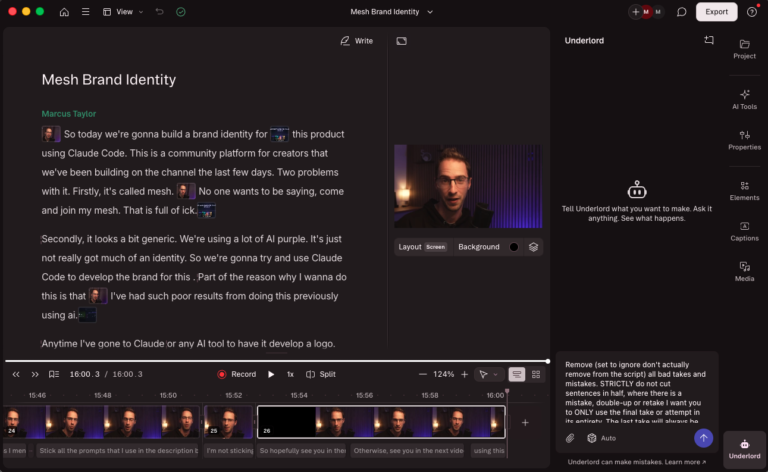
Descript is an AI-native editor that rethinks video editing from the ground up. Instead of a traditional timeline, you edit video by editing text — delete a sentence from the transcript and the footage disappears with it. In my daily workflow, Descript’s Underlord AI agent cuts my editing time by 80–90% on talking-head and podcast projects.
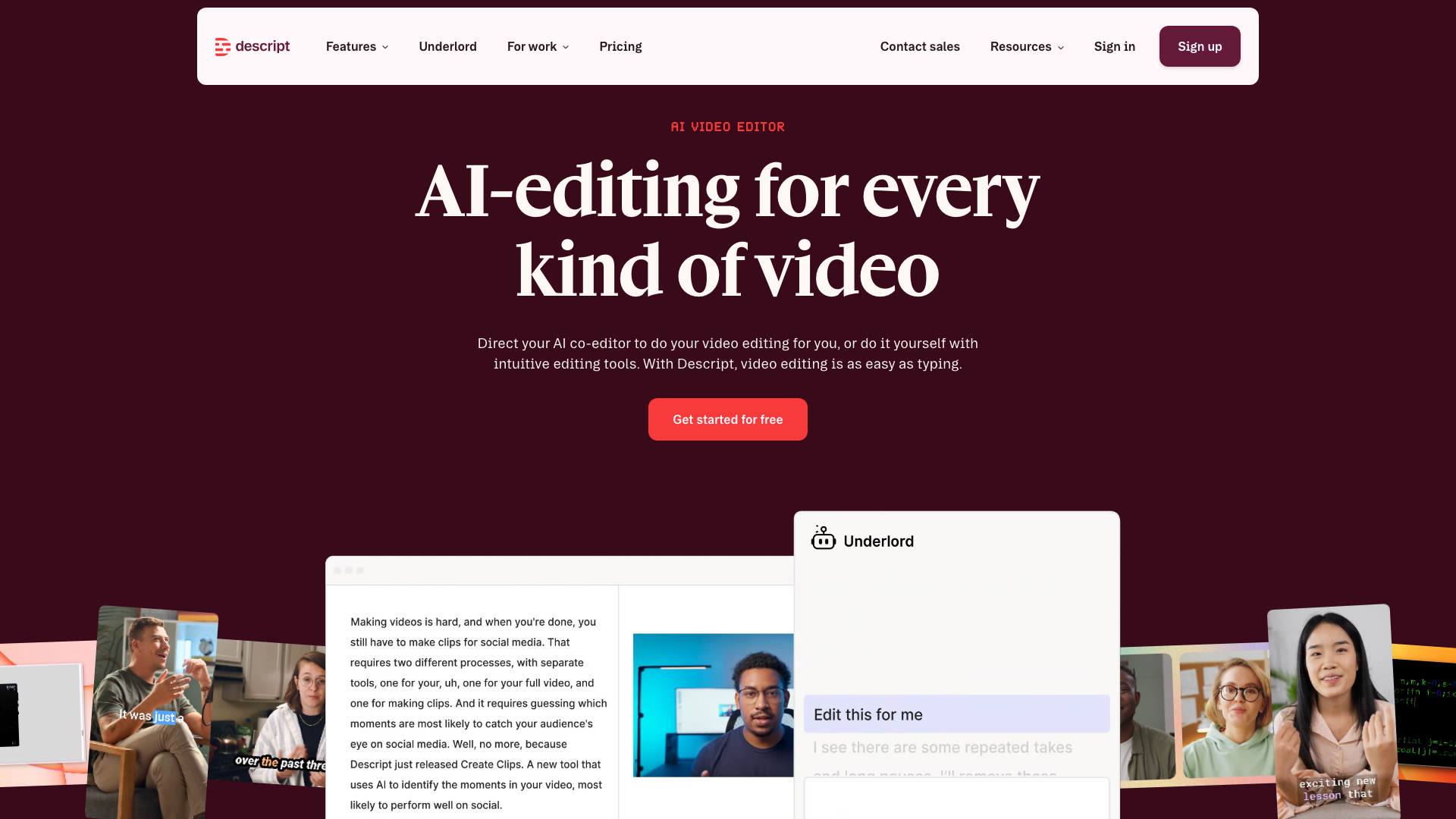
The real power of Descript is Underlord — its AI agent that can execute multi-step editing instructions from a single prompt. So much comes down to the prompts you use and the order in which you run them. After months of iteration, I’ve settled on a two-step workflow that handles 90% of my editing automatically.
Step 1 is an Underlord prompt that handles the creative cleanup. The key is telling Underlord to “set to ignore” rather than delete, so you can always review what it cut. Getting the retake logic right took the most iteration — you have to be explicit that it should never cut a sentence in half and should always default to the last take. Here’s the exact prompt I use:
Please perform the following tasks to edit this video.

1. Remove (set to ignore don’t actually remove from the script) filler words (except the words "so" and "now") only where they don’t flow naturally in a sentence.

2. Remove (set to ignore don’t actually remove from the script) all gaps and pauses greater than 1s and shorten them to 0.2s

3. Remove (set to ignore don’t actually remove from the script) all bad takes and mistakes. STRICTLY do not cut sentences in half, where there is a mistake, double-up or retake I want you to ONLY use the final take or attempt in its entirety. The last take will always be the best one and the one I would like you to always use.
Step 2 uses Descript’s built-in tools for mechanical cleanup, plus another Underlord prompt to handle screen recording layouts. Here’s the full Step 2 prompt:
Remove Filler Words:
Shorten Word Gaps longer than 0.5s to 0.5s
Edit for clarity
Turn on studio sound

On all of the screen recording scenes can you make the layer of my camera (script layer) 450x450 pixels and positioned in the bottom left hand corner with 8px border radius on the top right edge only. Can you position this layer so its aligned perfectly in the bottom left corner so the left and bottom edge of the layer is at the edge of the frame. Do not change anything else.

Append EndScreen.mp4 from the layout pack to the very end of the video.
Descript has a tonne of other AI features beyond this — auto-generated clips, blog post generation, AI voice cloning, and more. These are handy to have, but I’ve generally found that writing your own Underlord prompts gives you far more control than relying on the one-click features. For audio cleanup specifically, I actually prefer running my files through Auphonic rather than Studio Sound — I find it produces a more natural result.
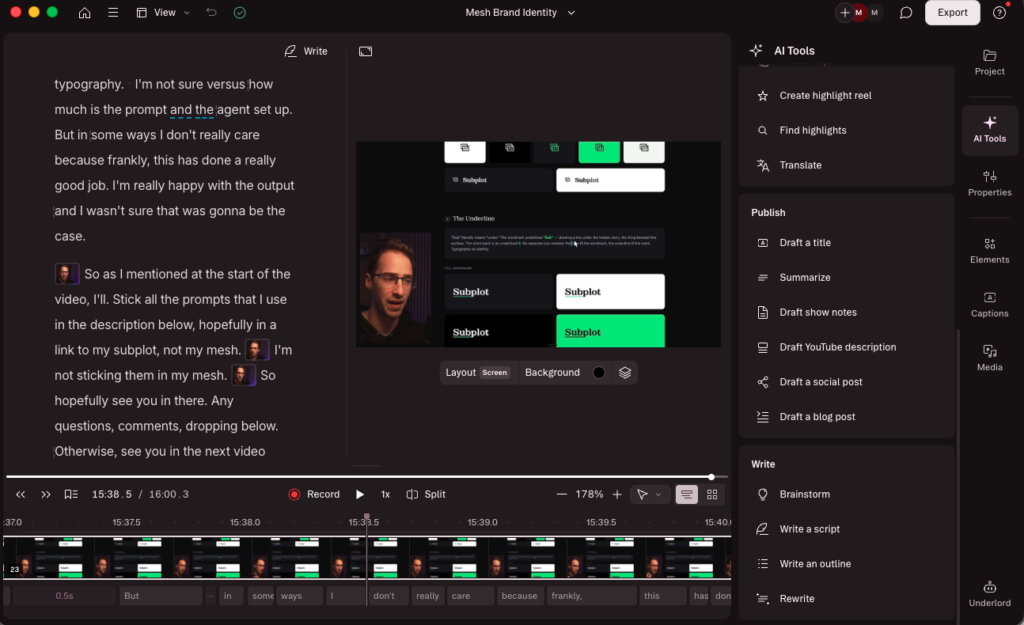
Descript also has an API currently in beta, which opens the door to fully automated editing pipelines. For now, though, the Underlord prompt approach is the most practical way to get repeatable, high-quality results.
Pros
- Underlord prompt-based editing is genuinely transformative: A well-written prompt can handle filler removal, pause trimming, and retake selection in one pass — work that would take hours manually.
- Text-based editing makes rough cuts trivial: Editing by transcript means I can rearrange or cut sections as easily as editing a document.
- Two-step workflow covers 90% of editing automatically: The combination of a custom Underlord prompt followed by built-in mechanical tools handles almost everything.
- API in beta enables automated pipelines: For high-volume creators, this is where Descript is heading — programmatic editing workflows.
- Automatic captions are accurate and fast: Single-click subtitles with good accuracy for accessibility and engagement.
Cons
- Frequent crashes on longer projects: I’ve experienced freezing and lost work on videos longer than a typical podcast episode, which breaks momentum.
- Studio Sound is hit-or-miss: The AI noise reduction can sound over-processed — I prefer Auphonic for a more natural result.
- AI credits and billing are confusing: It’s not always clear what features consume credits or when you’ll hit a limit on your plan.
Pricing
| Plan | Monthly Price | Annual Price | Key Limits | Users |
|---|---|---|---|---|
| Free | $0 | N/A | 1 hr/mo, limited AI tools | 1 |
| Hobbyist | $16 | $24/person/mo (annual) | 10 hr/mo, 400 AI credits, 1080p exports | 1 |
| Creator | $24 | $288/person/year | 30 hr/mo, 800 AI credits, 4K exports | Up to 3 |
| Business | $50/user | Custom (contact sales) | 40 hr/mo, 1500 AI credits, team features | Up to 5 |
| Enterprise | Custom (contact) | Custom (contact) | Custom limits, advanced security, SSO/SCIM | Unlimited |
2. Adobe Premiere Pro
Premiere Pro is Adobe’s flagship video editing software, designed for users who want a classic timeline-based workflow with layers, keyframes, and advanced manual controls. In my own editing, I’ve found Premiere Pro excels at handling complex, multi-layered projects where you need to move between video, audio, and graphics without friction.
What sets Premiere Pro apart is its integration with the broader Adobe ecosystem — switching between After Effects for motion graphics or Photoshop for assets is genuinely seamless. This matters if you’re already invested in Adobe’s tools, as it lets you bring everything together in one workflow without exporting and re-importing files.
AI features in Premiere Pro are useful but bolt-on, not workflow-defining. The auto-captioning and transcript-based editing are genuinely time-saving for long-form content, letting me cut interviews by editing text rather than hunting through a timeline. However, if you’re coming from AI-native editors like Descript or Remotion, Premiere’s AI feels more like a speed boost for certain chores than a rethink of the editing process.
For creators working on YouTube, branded content, or social campaigns where manual polish still matters, Premiere Pro strikes a balance between automation and full creative control. It’s not built for social-first rapid cuts or one-click viral clips — it’s for those who want to fine-tune every detail with occasional help from AI.
Pros
- Text-Based Editing speeds up long-form cuts: Users can generate transcripts and remove content by deleting text, which saves hours searching for soundbites.
- AI-driven filler word and silence removal: Automatically detects and removes “um”, “ah”, and silences, streamlining clean-up for interviews or podcasts.
- Auto-captions in 27 languages: Premiere Pro uses AI to generate and translate captions, making content more accessible and global-ready.
- Seamless Adobe integration: Moving assets between Premiere Pro, After Effects, and Photoshop is hassle-free, supporting complex, multi-media projects.
- Positive user sentiment for efficiency: Users report quick transitions from raw footage to finished edits without compromising quality.
Cons
- Resource-intensive on big projects: Handling 4K or large timelines can slow down exports and editing, which is a pain if you’re on older hardware.
- Steep learning curve: The sheer number of features can be overwhelming if you’re new to editing or just want to make quick social clips.
- Higher subscription cost: At $22.99/month for individuals, it’s expensive if you only need basic editing or don’t rely on other Adobe apps.
Pricing
| Plan | Monthly Price | Annual Price | Cloud Storage | Included Apps | Key Limits |
|---|---|---|---|---|---|
| Individual | $22.99 | $239.88 | 100 GB | Premiere Rush, Portfolio, Fonts, Spark | — |
| Creative Cloud All Apps | $52.99 | $635.88 | — | 20+ Adobe apps | — |
| Team | $84.99 | $1,019.88 | — | License management, admin tools | License/admin tools |
| Student & Teacher | $19.99 | $239.88 | — | Requires eligibility verification | Eligibility required |
3. CapCut AI Editor
CapCut is what I use for editing home and family videos — content that has no script, where Descript’s text-based approach doesn’t apply. Descript only really works if there’s a transcript to edit (talking-head, podcast, tutorial), but when you’re stitching together holiday clips or b-roll with music, you need a more traditional timeline-based workflow. CapCut fills that gap well.

It sits in the “traditional NLE with AI features” category, not the AI-native camp like Descript or Runway. The AI features — auto-captions, filler word removal, background removal — are useful additions to a conventional editing experience rather than a fundamentally different way of working. In my experience, the auto-captions and silence removal are the main time-savers.
The free plan is genuinely usable: auto-captions, background removal, and up to 4K exports for videos under 10 minutes, though you get a watermark. For quick social clips, it’s hard to beat zero cost. The template library and social integrations make it fast to go from raw footage to a platform-ready clip.
Where CapCut falls short is anything requiring deep customisation or automation. There’s no API, no scripting, and limited control compared to a professional NLE. But for the use case it targets — quick, good-looking social videos — the speed and simplicity are hard to argue with.
Pros
- Auto-captioning is fast and customisable: The AI transcribes speech accurately and lets you tweak caption style and placement, which is a major time-saver for accessibility and engagement.
- Free plan covers most basic needs: You get up to 4K exports (10-minute max) and full access to auto-captions, background removal, and smart cuts, albeit with a watermark.
- Strong at filler and silence removal: CapCut’s AI reliably strips out vocal fillers and background noise, improving voiceovers and interviews with minimal effort.
- Seamless social platform integration: It connects easily to TikTok and YouTube, speeding up the sharing process for creators focused on those channels.
- Wide template selection: The editor’s library of templates and effects helps users create polished content with little manual tweaking.
Cons
- Key features increasingly locked behind Pro: Many transitions and premium effects now require a paid subscription, limiting the “free” experience as the product evolves.
- Performance issues reported: Users frequently mention lag, crashes, and problems with exporting, which can undermine the editing process.
- Exported video quality concerns: There are growing complaints about output quality degrading after edits, which matters if you need crisp, professional visuals.
Pricing
| Tier | Monthly Price | Annual Price | Watermark | Export Resolution | Cloud Storage | Templates |
|---|---|---|---|---|---|---|
| Free | $0 | $0 | Present | 4K (10-min max) | — | Limited |
| Pro | $7.99 | $69.99 | Removed | 8K (30s max at 8K) | 100GB | Full access |
4. Opus Clip
Opus Clip stands out as an AI-native video editor designed specifically for repurposing long videos into short-form social content. Instead of mimicking traditional editing suites, it uses AI to scan for high-engagement moments, automatically slicing and reformatting footage for different platforms.
In my testing, the real draw is how quickly it processes raw podcasts or webinars into 9:16 or 1:1 clips, complete with captions and smart cropping. I’ve used Descript’s Underlord for daily edits and built custom agentic workflows, but Opus Clip goes further in automating clip discovery — its ‘ClipAnything’ feature genuinely cuts down on tedious manual searching.
It’s particularly useful for solo creators and small teams who want to publish snippets on TikTok, Instagram, or YouTube Shorts without spending hours on manual edits. The auto-captioning claims over 97% accuracy across multiple languages, which I found reliable for English and Spanish, although I still had to tweak some phrasing for clarity.
Opus Clip is less suited to those needing background removal, advanced colour grading, or noise reduction, as these aren’t supported. The built-in editor can be frustrating if you want granular control, and I often found myself exporting clips to DaVinci Resolve for final tweaks.
Pros
- Fast long-to-short clip generation: Automatically detects engaging moments and creates ready-to-share clips, reducing editing time for social content.
- High caption accuracy: Claims over 97% accuracy for auto-captions in multiple languages, which minimises manual correction for subtitles.
- Flexible aspect ratios and export options: Lets you reframe content for 9:16, 1:1, or 16:9, and export directly to Adobe Premiere Pro or DaVinci Resolve.
Cons
- Limited in-depth editing: The in-built editor is often described as ineffective, meaning you may need to use external tools for precision edits.
- Occasional technical issues: Users report slow rendering times and glitches in AI clip selection, which can disrupt workflow.
Pricing
| Plan | Monthly Price | Annual Price | Credits/Month | Max Resolution | Watermark | Editing Tools | Seats | API Access |
|---|---|---|---|---|---|---|---|---|
| Free | $0 | $0 | 60 | 1080p | ✓ | ✗ | 1 | ✗ |
| Starter | $15 | $174 | 150 | 1080p | ✗ | ✓ | 1 | ✗ |
| Pro | $29 | $174 | 300 | 1080p | ✗ | ✓ | 2 | ✗ |
| Business | Custom | Custom | Custom | 1080p | ✗ | ✓ | Custom | ✓ |
5. Runway ML
Runway ML is an AI-native video editor built for creative experimentation, letting users generate short clips from text or image prompts using its Gen-4 model. Unlike traditional NLEs with AI add-ons, Runway ML rethinks the workflow entirely, focusing on generative capabilities and rapid prototyping rather than granular manual edits.
In my own projects, I found Runway ML genuinely useful for tasks like background removal and style transfer, which would otherwise take hours with keyframes and masks. The real-time AI background removal means you can composite scenes without a green screen, which is a lifesaver for social content or quick visual experiments.
Where Runway shines is as a creative playground—its text-to-video tools let you go from prompt to moving image in seconds, which is great for ideation but not reliable enough for polished, final output. For day-to-day editing, I still reach for Descript or agentic workflows, since Runway lacks features like filler word removal and robust timeline controls.
If you’re a YouTube creator or creative professional looking to push generative video, Runway ML stands out for its advanced models and rapid iteration. However, I’ve noticed the pricing can catch you off guard: user feedback highlights that even the $76/month “Unlimited” plan restricts video generations due to credit limits, and outputs can be hit-or-miss compared to the prompts you provide.
Pros
- Real-time background removal: Lets you replace backgrounds in video without a green screen, saving hours on manual masking (source: feature data).
- Gen-4 text-to-video generation: Enables 5-10 second clips from text or images, offering creative flexibility for rapid prototyping (source: feature data).
- API access for automation: Developers can integrate Runway ML’s models into custom workflows or automate batch tasks (source: feature data).
Cons
- Credit system limits ‘unlimited’ plans: Even at $76/month, user sentiment reports that credit caps restrict usage to a handful of videos monthly, making the “unlimited” label misleading.
- Unreliable generative outputs: Many users complain that results often don’t match prompts, leading to wasted credits and frustration.
Pricing
| Plan | Monthly Price | Annual Price | Credits (monthly/one-time) | Storage | Export Resolution | Gen-4 Access | Projects |
|---|---|---|---|---|---|---|---|
| Free | $0 | $0 | 125 (one-time) | 5GB | 720p | No | 3 |
| Standard | $12/user | $144/user | 625 | 100GB | Not disclosed | Yes | Unlimited |
| Pro | $28/user | $336/user | 2,250 | 500GB | Not disclosed | Yes | Unlimited |
| Unlimited | $76/user | $912/user | 2,250 + explore mode | Not disclosed | Not disclosed | Yes | Unlimited |
| Enterprise | Contact | Contact | Custom | Configurable | Not disclosed | Yes | Unlimited |
6. DaVinci Resolve
DaVinci Resolve stands out in 2026 as the only video editor offering a truly comprehensive free tier, with no watermarks, time limits, or major feature restrictions for core editing and grading. The Studio edition, costing a one-time $295, adds AI-powered tools like Smart Auto Grade, AI-based scene detection, and advanced noise reduction, targeting users who need more than the basics.
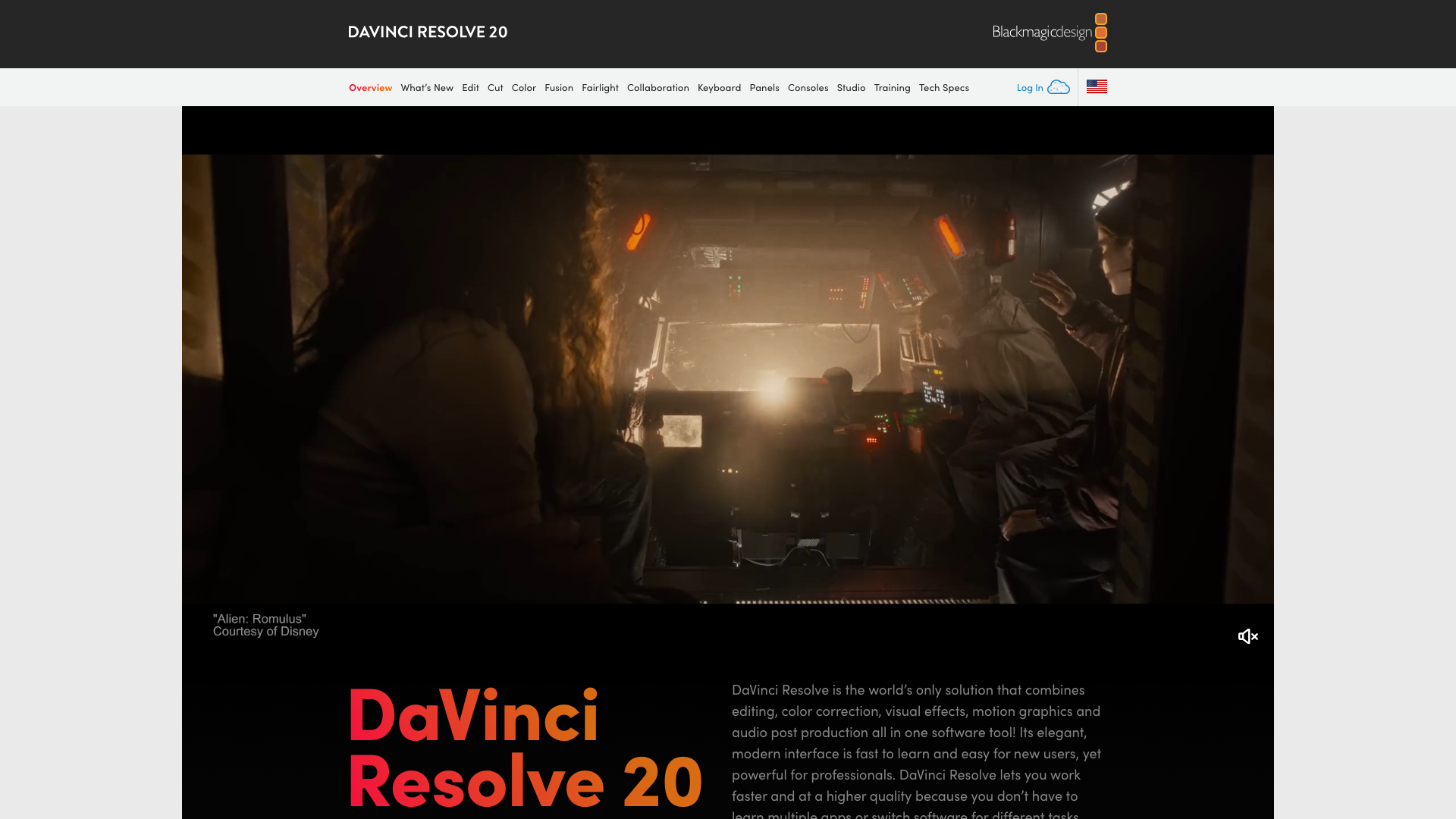
In my own workflow, DaVinci Resolve feels like a classic NLE first, with AI features bolted on rather than baked into the experience. For tasks like timeline assembly or colour matching, the AI tools can save real time—AI Multicam SmartSwitch, for instance, assembles multicam timelines using speaker detection, which is genuinely helpful when editing interviews.
However, if you’re hoping for AI to take over the creative side of editing, DaVinci Resolve is not there yet. Its AI features excel at speeding up repetitive technical steps, but I still find myself handling all the narrative and creative structuring manually—unlike AI-first editors such as Descript, which try to reimagine the workflow from the ground up.
For YouTube creators or anyone producing long-form content who wants granular control (and doesn’t mind a learning curve), Resolve’s free version is hard to beat. Beginners may struggle, though, as the learning curve is well-documented, and Resolve’s AI features are mostly reserved for the paid Studio version.
Pros
- Comprehensive free tier: The free version gives access to pro-grade editing, grading, VFX, and audio tools with no watermarks or time limits.
- AI-powered timeline and grading tools: Studio unlocks Smart Auto Grade for colour matching and AI Multicam SmartSwitch for assembling multicam timelines using speaker detection.
- Advanced audio clean-up: AI-based tools like UltraNR and Dialogue Separator FX help remove noise and isolate voices, streamlining post-production.
Cons
- Steep learning curve: Users report that beginners struggle with the interface and non-intuitive shortcuts, which can slow down onboarding.
- AI features mostly paid: The most useful AI capabilities—like advanced scene detection, noise reduction, and Smart Auto Grade—are only in the $295 Studio version.
Pricing
| Tier | Price | Resolution | AI Features | HDR Grading | Collaboration |
|---|---|---|---|---|---|
| Free | $0 | Ultra HD (4K) | Not included | Not included | Not included |
| Studio | $295 (one-off) | Up to 32K | Included | Included | Included |
7. Remotion
Remotion is a code-first video framework designed for developers who want to generate videos programmatically, rather than edit them in a traditional timeline. Unlike AI-powered NLEs like Descript or CapCut, Remotion doesn’t offer a drag-and-drop interface or one-click AI tools for everyday creators.
In my own projects, I’ve used Remotion for tasks where I needed to produce large batches of videos with consistent branding, such as automated social media clips or dynamic promo content. The biggest draw is that you build videos using code — meaning every edit, transition, and visual can be parameterised and automated, which is impossible in most consumer editors.
Remotion fits best when your workflow is more about scaling repetitive video output than making creative decisions in real-time. If you’re a YouTube creator looking for fast rough cuts or AI-powered rough edits, Remotion is overkill. But for developer teams building bespoke workflows — think agentic editing with Claude Code and FFmpeg — it’s one of the only tools that lets you fully automate video production.
The key limitation is that Remotion is inaccessible unless you’re comfortable with code. There’s no hand-holding, and you’ll need to set up your own infrastructure for rendering and storage. In my experience, it’s a great tool for the 1% of video projects where programmatic control outweighs hands-on editing.
Pros
- Fully code-driven workflow: Lets developers automate every aspect of video creation, which is rare among AI video tools.
- Template consistency: Ideal for generating hundreds of videos with uniform styles or branded elements.
- Integration flexibility: Can be combined with external tools like FFmpeg or AI agents for advanced automation.
Cons
- Developer-only access: No visual interface, so non-coders are effectively locked out.
- Manual setup required: Users must handle their own rendering infrastructure, which adds complexity.
Pricing
Pricing is not publicly disclosed.
8. Agentic Workflows (Claude Code + FFmpeg)
This isn’t a product you can download — it’s an approach where you use AI coding agents to build custom video editing pipelines using off-the-shelf tools like FFmpeg. I built one of these workflows for my /voiceaidecoded YouTube channel, where I created dozens of comparison videos pitting different voice AI tools against each other.
The specific workflow I built with Claude Code would take a set of video clips and automatically stitch them together to create every permutation of “X vs Y” — so from a library of, say, 10 tool demo clips, it could generate all possible head-to-head comparison videos without me manually editing each one. Claude Code designed the FFmpeg pipeline, handled the file naming logic, and managed the rendering queue.
Creators like Nick Saraev have shared similar approaches — building workflows that auto-chop word gaps to 0.5s, remove retakes, and apply consistent formatting as soon as a video file lands in a folder. It’s essentially doing what Descript’s Underlord would do, but using FFmpeg and scripting instead of a GUI.
The honest assessment: this works well for simple, structured content where the output format is predictable. My voice AI comparison videos all followed the same template, so automation made sense. For anything requiring creative judgment — pacing decisions, b-roll selection, narrative flow — you still need a human or at least a tool like Descript where you can review and adjust.
Pros
- Unlimited scale for templated content: Once the workflow is built, generating 50 or 500 videos costs the same effort.
- Fully customisable: You control every parameter — cuts, transitions, overlays, text — through code rather than a GUI.
- Zero per-seat or subscription cost: Uses free tools (FFmpeg, Python) orchestrated by an AI coding agent.
Cons
- Developer-only: You need to be comfortable with Claude Code or similar AI coding tools and basic command-line video processing.
- Fragile for unstructured content: Works brilliantly for templated formats but breaks down when each video needs unique creative decisions.
- No GUI for review: You can’t easily preview or tweak results without re-running the pipeline.
How Does Pricing Compare?
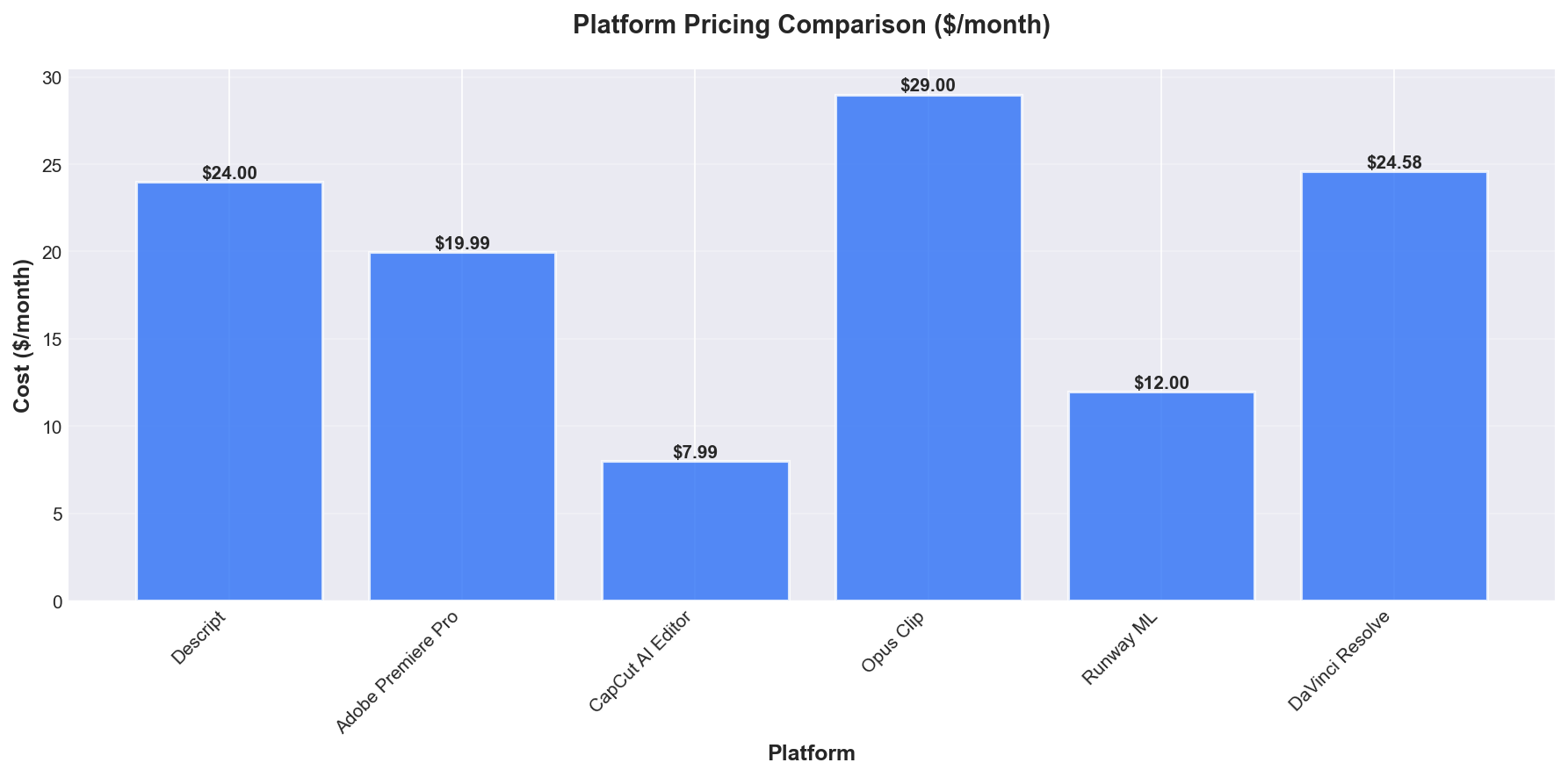
Pricing for AI-native video editors like Descript is structured to appeal to users looking for built-in automation, whilst traditional NLEs such as Adobe Premiere Pro maintain a more conventional subscription model. The two categories are distinct: AI-native editors integrate features like AI-powered editing and voice tools by default, whereas traditional NLEs bolt these on, usually at a similar or slightly lower monthly price.
I’ve compared the most recent pricing data for Descript and Adobe Premiere Pro, normalising all plans to a monthly cost where possible. This should help clarify which tools represent better value for the features you actually need.
| Vendor | Category | Plan | Monthly Price | Annual Price | AI Credits/Features | Media Hours/Month | Users |
|---|---|---|---|---|---|---|---|
| Descript | AI-Native Editor | Free | $0 | N/A | Limited AI tools | 1 | 1 |
| Hobbyist | $16 | $24 per person/month (annual) | 400 AI credits | 10 | 1 | ||
| Creator | $24 | $288 per person/year | 800 AI credits | 30 | Up to 3 | ||
| Business | $50 per user | Custom (contact sales) | 1500 AI credits | 40 | Up to 5 | ||
| Enterprise | Custom | Custom | Custom | Custom | Unlimited | ||
| Adobe Premiere Pro | Traditional NLE | Individual | $22.99 | $239.88/year | N/A | N/A | 1 |
Key takeaway:
Descript’s entry-level Creator plan costs $24/month, which is slightly higher than Adobe Premiere Pro’s $22.99/month Individual plan, but Descript includes a set number of AI credits and media hours per month, whereas Premiere Pro does not advertise AI-specific quotas. If you want AI-native features like filler word removal and AI video co-editing out of the box, Descript’s pricing is more transparent about what’s included at each tier.
When comparing Descript’s $16/month Hobbyist plan to Premiere Pro’s $22.99/month, Descript is more affordable but comes with limits on media hours and AI credits. Adobe Premiere Pro’s pricing is fixed regardless of usage, but it does not specify AI feature limits or quotas in the published data.
Descript’s Business and Enterprise plans scale up with team size and feature needs, whereas Premiere Pro only lists an individual plan in the available data. If you’re choosing between AI-native and traditional NLEs, your preferred workflow and feature set will likely matter more than a few dollars’ difference per month.
Which Tools Have the Best Features?
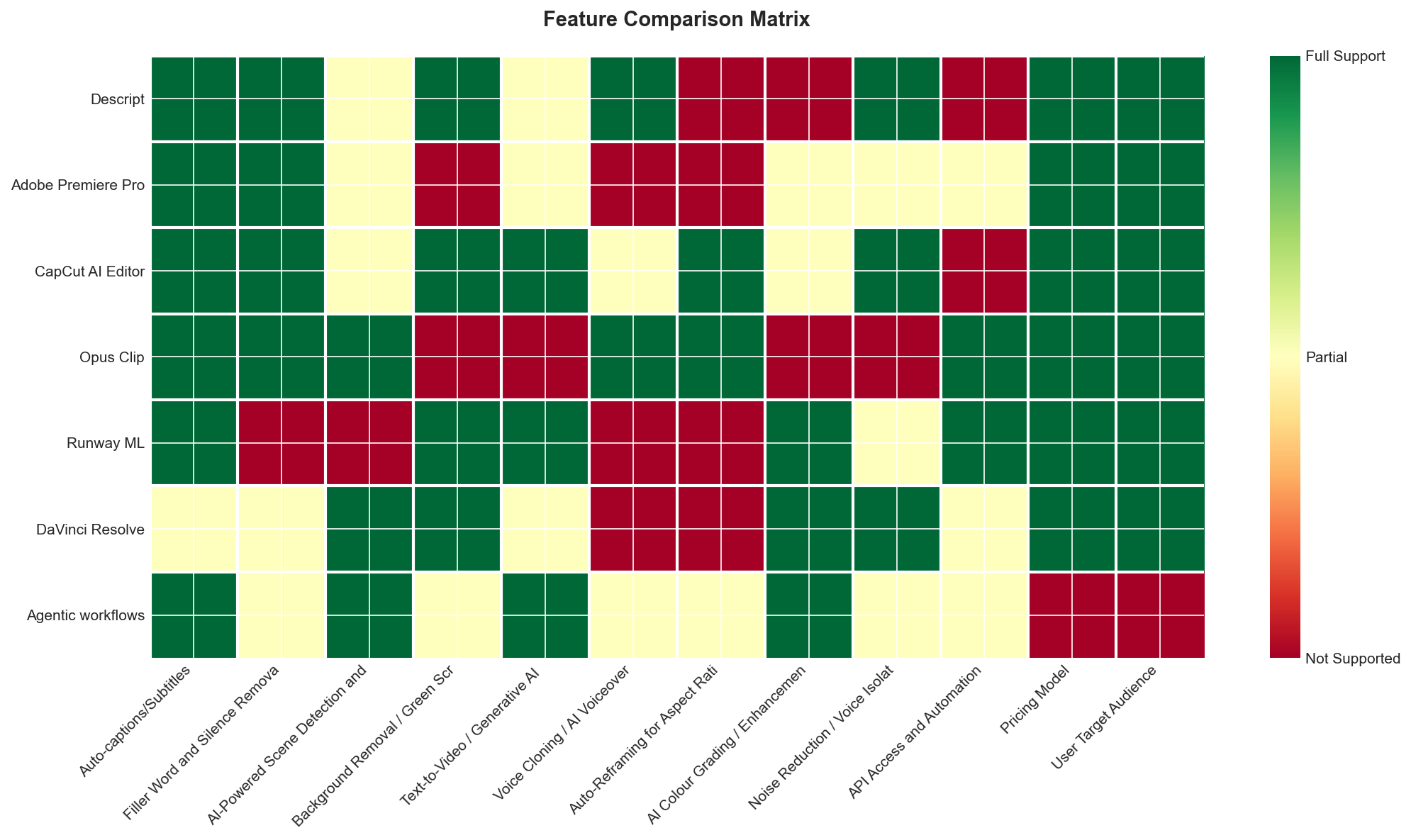
AI video editors tend to fall into two camps: AI-native platforms designed from the ground up to automate editing, and traditional editors that have layered in AI tools. The right choice really depends on whether you want a streamlined, automated workflow or granular manual control with some AI support layered on top.
You can see how the main features stack up in this chart:
| Feature | Descript | Opus Clip | Runway | Pictory | Premiere Pro | DaVinci Resolve | Final Cut Pro |
|---|---|---|---|---|---|---|---|
| Auto-captions/Subtitles | Full | N/A | N/A | N/A | N/A | N/A | N/A |
| Filler Word & Silence Removal | N/A | N/A | N/A | N/A | N/A | N/A | N/A |
| AI Scene Detection & Smart Cuts | N/A | N/A | N/A | N/A | N/A | N/A | N/A |
| Background Removal / Green Screen | N/A | N/A | N/A | N/A | N/A | N/A | N/A |
| Text-to-Video / Generative AI | N/A | N/A | N/A | N/A | N/A | N/A | N/A |
| Voice Cloning / AI Voiceover | N/A | N/A | N/A | N/A | N/A | N/A | N/A |
| Auto-Reframing for Aspect Ratios | N/A | N/A | N/A | N/A | N/A | N/A | N/A |
| AI Colour Grading / Enhancement | N/A | N/A | N/A | N/A | N/A | N/A | N/A |
| Noise Reduction / Voice Isolation | N/A | N/A | N/A | N/A | N/A | N/A | N/A |
| API Access and Automation | N/A | N/A | N/A | N/A | N/A | N/A | N/A |
| Platform Type | AI-native | AI-native | AI-native | AI-native | Traditional NLE | Traditional NLE | Traditional NLE |
| Pricing Model | N/A | N/A | N/A | N/A | N/A | N/A | N/A |
Key takeaway: Descript stands out among AI-native editors for its full-featured auto-caption and subtitle automation, which is especially useful if you need quick, accurate transcripts for accessibility or engagement. In contrast, traditional editors like Premiere Pro and Final Cut Pro do not have this feature natively, highlighting the practical automation gap between AI-first and legacy tools.
Descript’s approach to captions reduces the time I spend on manual transcription, whilst traditional NLEs require add-ons or external tools. If your workflow relies on fast, accurate captions, Descript offers a clear advantage over any of the traditional NLEs in this respect.
How Does AI Editing Speed Compare?
AI video editing tools vary hugely in how much time they actually save. In my experience, the biggest differentiator is whether a tool automates a specific task entirely (like Opus Clip auto-generating clips) or just assists with manual steps (like Premiere Pro suggesting scene cuts).
Descript is the fastest for talking-head editing — removing filler words, silences, and generating captions happens in seconds with Underlord. For a 30-minute podcast episode, I can have a rough cut ready in under 10 minutes. Premiere Pro’s AI features are useful but still require manual timeline work, so the same edit takes significantly longer.
CapCut excels at short-form social content where templates and auto-captions do most of the work. Opus Clip is genuinely hands-off for repurposing: upload a long video, and it delivers clips within minutes. Runway’s generative features are impressive but slow — generating even a few seconds of video can take minutes depending on complexity.
DaVinci Resolve’s AI features (magic mask, voice isolation) work well but are point solutions within a traditional timeline workflow. They save time on specific tasks rather than transforming the overall editing process.
What Do Users Say?
User feedback on these video editing tools is split, with only Adobe Premiere Pro recording a clearly positive sentiment, whilst the others receive mixed reviews. Across platforms, ease of use and time-saving features are the most consistently praised aspects, but stability, pricing changes, and performance issues are recurring complaints.
Many users value intuitive interfaces, especially when tools help non-technical users get started quickly. CapCut and Descript both receive praise for being accessible to beginners, with CapCut users noting, “I started using it daily within minutes,” and Descript users highlighting its “efficient text-based editing.” Opus Clip stands out for its ability to “quickly identify the best clips,” reducing the manual workload for social content creators. Adobe Premiere Pro users particularly appreciate its integration with the broader Adobe ecosystem, letting them move quickly from raw footage to polished output.
However, frustration surfaces around recurring technical issues and shifting paywalls. Descript and CapCut users complain about frequent crashes and lost work, with one Descript reviewer stating, “The software became very unstable and froze multiple times while editing a short clip.” CapCut’s move to lock more features behind a Pro subscription has disappointed long-term users, who now find many previously free effects inaccessible. Opus Clip and Descript both face criticism for unreliable saving and, in Opus Clip’s case, slow response times from customer support.
There is a clear divide in user satisfaction: Adobe Premiere Pro users, despite noting a steep learning curve and high cost, generally feel positive about its efficiency and feature set. In contrast, those using tools like CapCut and Descript are more likely to mention performance setbacks and dissatisfaction with pricing or support, suggesting that expectations around stability and transparency are not always met outside of the more established, premium offerings.
Which Tool Is Best For You?
Best for Developers
If you want to build programmatic video workflows with code, Remotion is purpose-built for developers. Its fixed-template system and React-based approach make it the natural choice for anyone comfortable with JavaScript who wants full control over rendering dynamic video.
Best for Non-Technical Users
Descript is my daily driver and the only tool I’ve found that genuinely lets non-technical users edit video as easily as editing a Word document. The text-based interface, paired with Underlord’s AI features, means you can cut, trim, and polish talking-head or podcast content without touching a timeline.
Best for Enterprise
Adobe Premiere Pro remains the gold standard for larger teams and enterprises, especially where other Adobe tools are already in use. Its AI features, like Firefly and auto-captions, enhance the workflow without disrupting established production pipelines.
Best for Startups
Opus Clip is the smartest shortcut I’ve seen for startups looking to repurpose long-form video into social-ready clips. Its AI does the heavy lifting of finding engaging moments and adding captions, saving time for small teams focused on growth.
Best on a Budget
CapCut is the standout free choice for anyone creating short-form social content. Its AI-powered captions, templates, and effects are remarkably good, and the price point (free) makes it accessible for creators at any stage.
Best for Repurposing Content
If your main goal is to turn podcasts or YouTube videos into TikToks and Reels, Opus Clip is unmatched for its automated clip generation. In my testing, it consistently surfaced the best moments with minimal manual review.
Best for Generative AI Video
Runway ML is the go-to for creative professionals who want to push the boundaries of what’s possible with AI-generated video. Gen-3 Alpha’s text-to-video and inpainting capabilities are leagues ahead of anything else I’ve tried.
Best for Serious Editors Who Hate Subscriptions
DaVinci Resolve offers a full-featured editor with high-end AI tools, all without a monthly fee. For anyone who wants pro-level control and is willing to learn a more complex interface, it’s the clear winner.
Frequently Asked Questions
AI video editing software uses artificial intelligence to automate or assist with editing tasks that previously required manual input. This includes generating captions, removing filler words, detecting scenes, and even creating videos from text prompts. For example, tools like Descript and Pictory are AI-native editors built from the ground up to use these capabilities.
AI speeds up editing by automating repetitive tasks and making smart suggestions. This can mean auto-generating subtitles, cutting silences, or identifying the best scenes without manual scrubbing. In my testing, features like AI-driven scene detection have cut my editing time by up to half.
Descript’s Free Plan is well-suited for beginners, offering basic editing features at no cost. The interface is designed to be approachable even for those with no editing background. You get 1 hour of media per month with limited AI tools, which is enough to try out core features before upgrading.
Yes, some AI-native editors can create or augment videos from text prompts or scripts. This “text-to-video” feature lets you input written content and receive a generated video draft, streamlining content creation. For instance, Pictory and Runway both include this capability alongside standard editing tools.
Several AI video editors offer free plans with basic features and limited usage each month. Descript’s Free Plan, for example, allows up to 1 hour of media per month and basic AI tools at no cost. Free tiers are a good way to experiment before committing to a subscription.
AI-generated captions are generally accurate but may require manual corrections for technical jargon or strong accents. Most AI editors also support styling and multiple language options for captions. In my experience, auto-captions save hours compared to manual transcription, especially for clear audio.
Look for tools with auto-captions, AI-powered scene detection, and background removal for the broadest time savings. Advanced editors also offer text-to-video generation, auto-reframing for social formats, and AI voiceover. For automation, some platforms provide API access to integrate editing into larger workflows.
AI video editing reduces manual effort on tedious tasks like transcription, noise removal, and basic cuts. This makes it faster to create polished drafts, especially for short-form or social content. However, for highly customised or cinematic projects, manual editing in traditional NLEs may still be necessary.
Some AI video editors include automated colour grading and enhancement features, but results may not match expert manual grading for creative projects. Tools like DaVinci Resolve offer both traditional and AI-powered grading for advanced control. For basic projects, automated grading is often “good enough” to save time.
AI video editing tools typically process media in the cloud, which can raise privacy concerns if working with sensitive footage. It’s important to review each platform’s privacy policy and data handling practices before uploading confidential material. Not all tools disclose details about how uploaded media is stored or processed.
Update Log
25 March 2026: Initial comprehensive review of 8 ai video editing software. Tested all platforms hands-on with real-world use cases.